Job ComposerPermanent link to Job Composer
The Job Composer provides a graphical interface for creating, editing, and submitting Slurm jobs from templates, with a built-in file editor and job list. No shell or local SSH required.
Setting the Script Location and NamesPermanent link to Setting the Script Location and Names
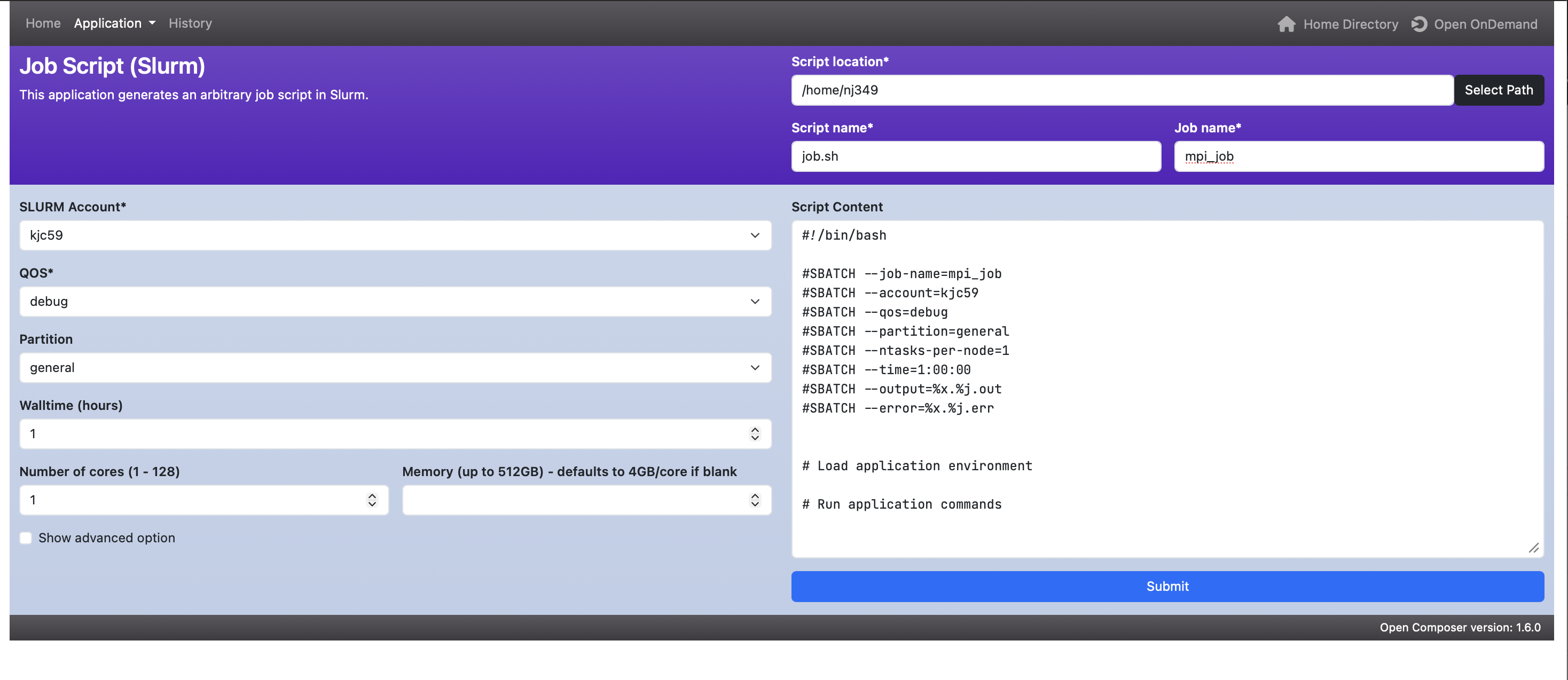
At the top of the form:
- Script location — the directory where the script will be saved (defaults to
your home directory, e.g.
/home/<UCID>). Use Select Path to browse. - Script name — the filename for the generated script (defaults to
job.sh). - Job name — the name your job will appear under in the scheduler.
Job ParametersPermanent link to Job Parameters
Set the resource request on the left. As you change these, the corresponding
#SBATCH directives update in the Script Content box on the right.
- SLURM Account — the account the job is charged to (defaults to your account,
e.g.
kjc59). If you have more than one account, select the correct one. - QOS — the quality of service (e.g.
debug,standard). Use the qoslist tool to confirm which QoS values your account can use. - Partition — the partition to run on (
general,gpu,bigmem, etc.). - Walltime (hours) — the maximum run time.
- Number of cores (1 – 128) — cores requested on the node.
- Memory (up to 512 GB) — total memory; if left blank it defaults to 4 GB per core.
Check Show advanced option to configure additional settings such as a job array.
Script ContentPermanent link to Script Content
The Script Content box shows the generated script, which you can edit directly:
1 2 3 4 5 6 7 8 9 10 11 12 13 14 | |
Add your module load lines under Load application environment and your
program commands under Run application commands. Adjust the #SBATCH
directives as needed for your job.
Note
%x.%j in the output and error filenames expands to your job's name and job
ID (e.g. myjob.123456.out).
Submitting the JobPermanent link to Submitting the Job
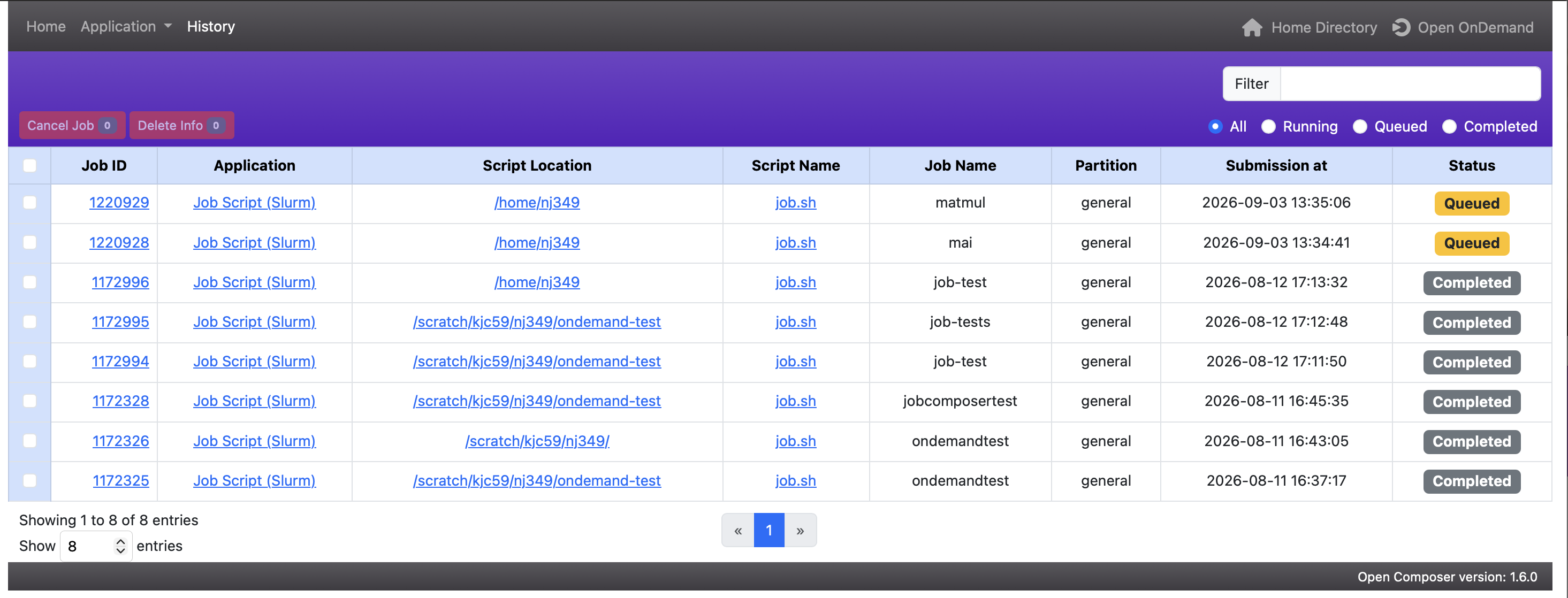
Click Submit to send the job to Slurm. You can review previously submitted jobs from the History tab at the top of the application, and monitor active jobs from the Active Jobs tool.
HistoryPermanent link to History
The History page lists jobs you've submitted through the composer along with their status. From there you can Cancel a running job or Delete an entry from the History view (deleting an entry does not remove the job's files).